How to Change Language on HBO Max
Changing language on HBO Max is the best feature. You can change the audio or subtitle language while the title is playing. The available choices depend on the movie, show, episode, and your region.
Max in some markets, offers different language options for supported content. You may find several audio tracks on one title, while another may only have one audio option. You can also use subtitles if the audio language you want is not available.
In this article we share explains how to change language on HBO Max on a TV, Android phone, iPhone, iPad, Firestick, Roku, and computer. We also explain the difference between audio, subtitles, and display language.
Quick Way to Change Language on HBO Max
The quickest way to change the language is from the playback menu. You do not usually need to change your whole device language just to watch a movie in another language. Follow these steps:
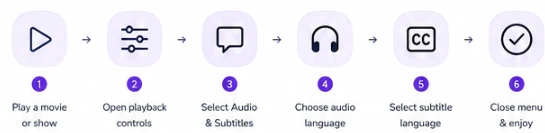
The exact layout can vary by device.
3 Different Methods to Change Language on MAX
Changing the Audio
Audio language changes the language you hear in the movie or TV show. If a title has English, Spanish, and French audio tracks, for example, you can choose one of those options.
Steps Change Audio Language
To change the audio language on HBO Max:
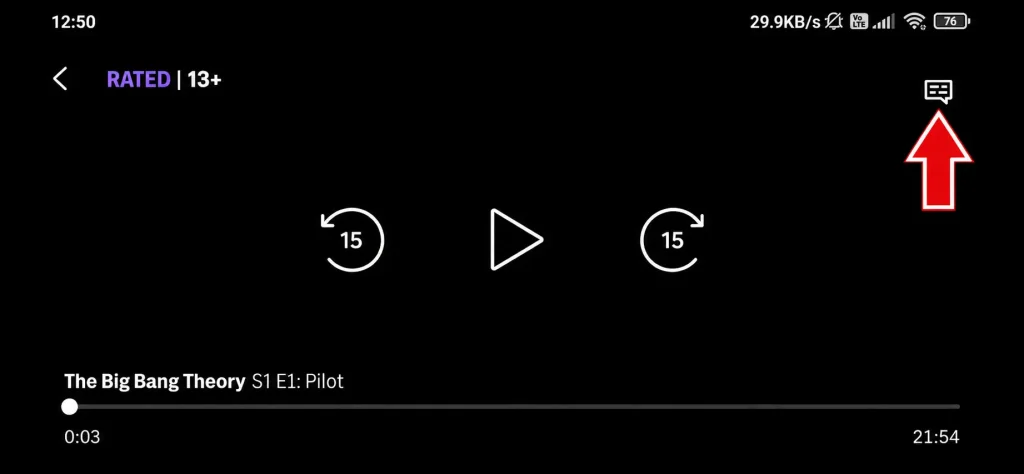
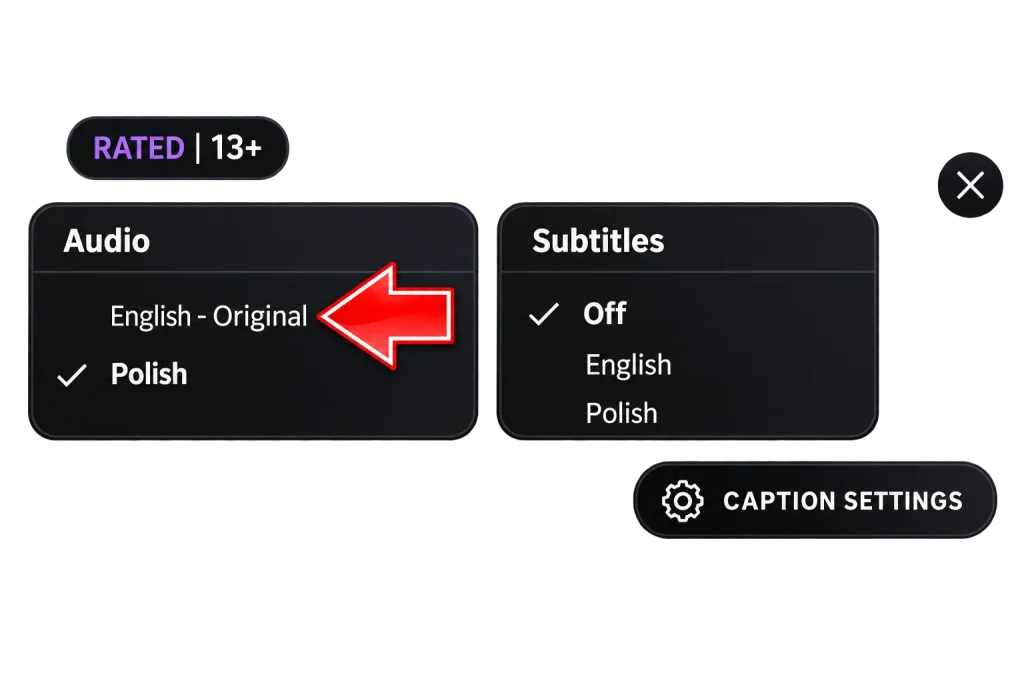
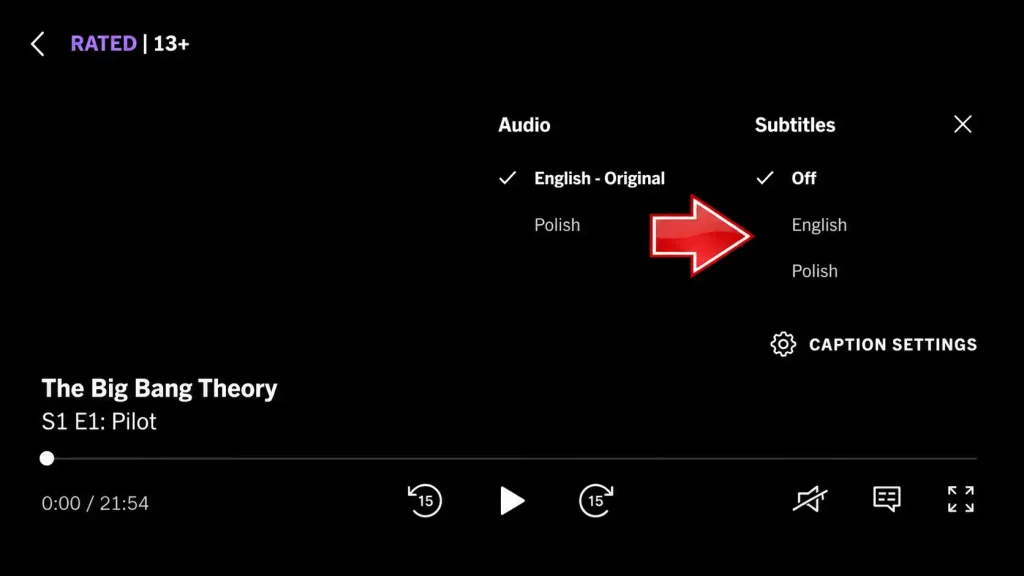
How to Change Subtitle Language
You can also change the subtitle language without changing the audio.
Steps Change Subtitle Language
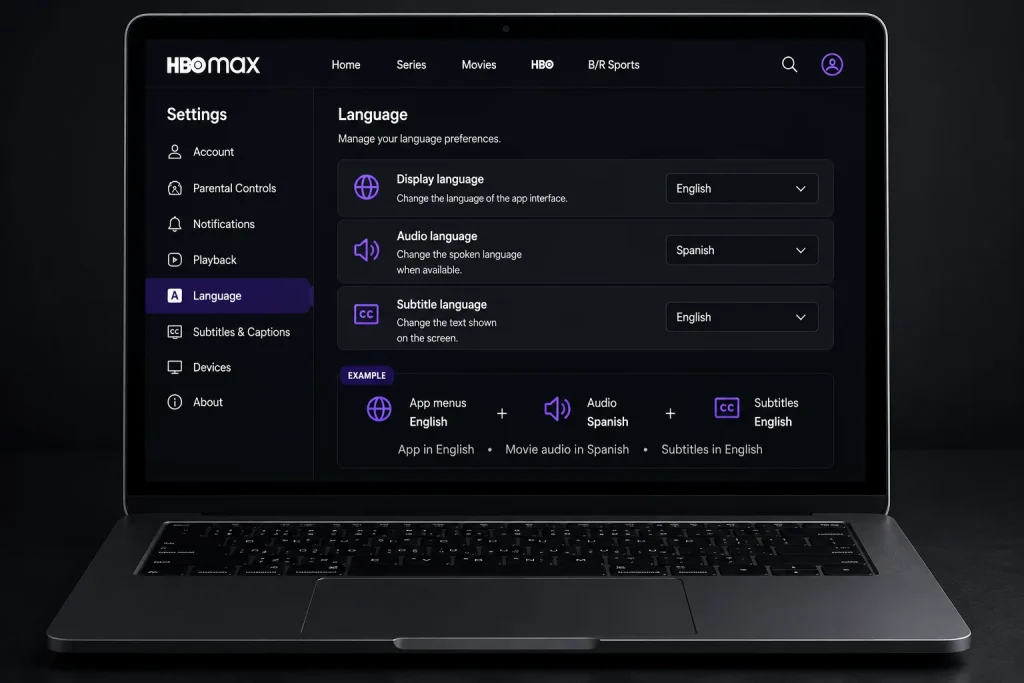
Audio and Subtitle Languages Can Be Different
You do not always have to use the same language for audio and subtitles.
For example 1:
- Audio: English
- Subtitles: Spanish
For example 2:
- Audio: Spanish
- Subtitles: English
The choices depend on what the title provides. If you only see one language under audio, that does not mean subtitles are limited to the same language. Check both sections separately.
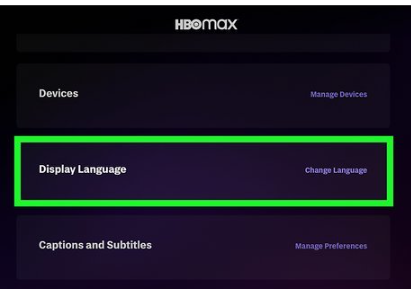
Changing the Display Language
The display language is different from the audio language.The display language refers to the language used for the app interface, such as menus, buttons, and other on-screen text where the setting is supported. Changing the display language does not automatically change the spoken language of a movie.
Changing the Interface Language
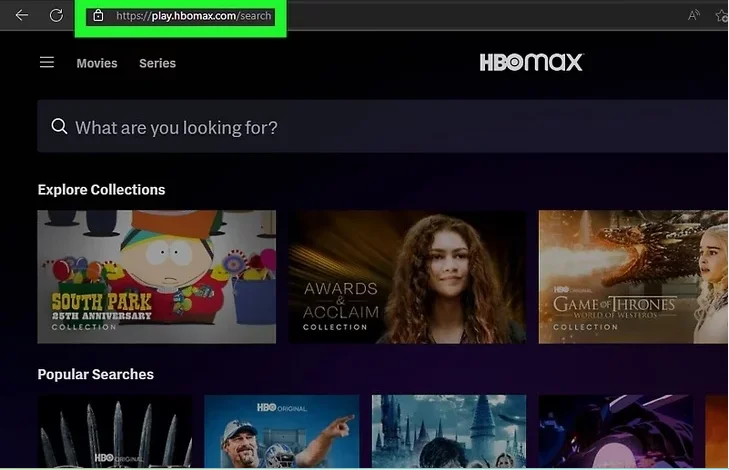
- Open the Max app or website and sign in to your account.
- Select your profile icon, usually located in the top-right corner.
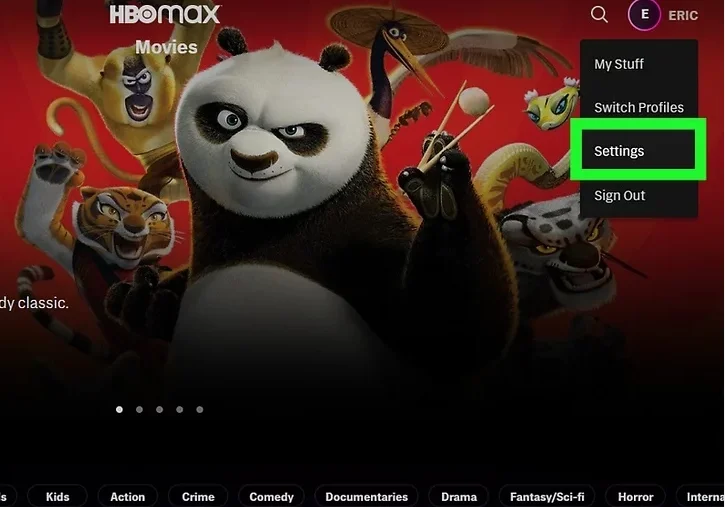
- Choose Edit Profiles or Manage Profiles.
- Select the profile where you want to change the language.
- Find Display Language in the profile settings.
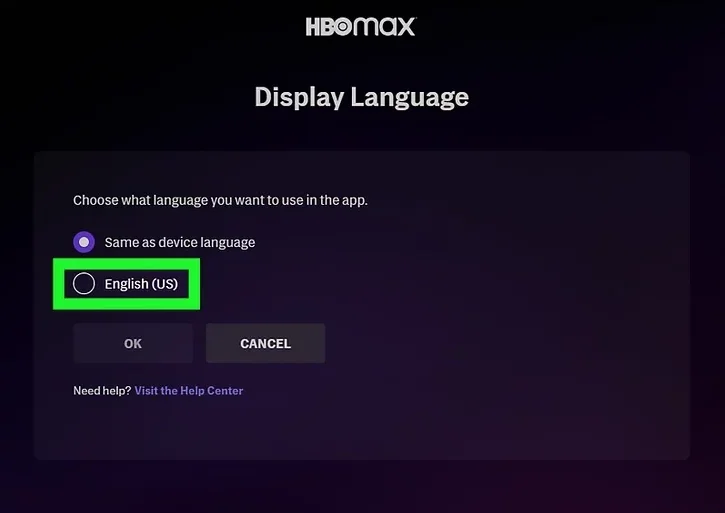
- Choose your preferred language, then select Save or Done to apply the change.
Finding Titles in Other Languages
If you often watch content in another language, checking the title’s language options can save you time. Not every movie or TV show has the same language support. Some titles may include several audio tracks and subtitle languages. Others may only include the original language.
Before choosing a title, look for its available language or subtitle information when provided. You can also start the title and open Audio and Subtitles to see what is available.
Browsing Foreign Language Content Steps

- Open the Max app on your TV or device.
- Go to the menu bar.
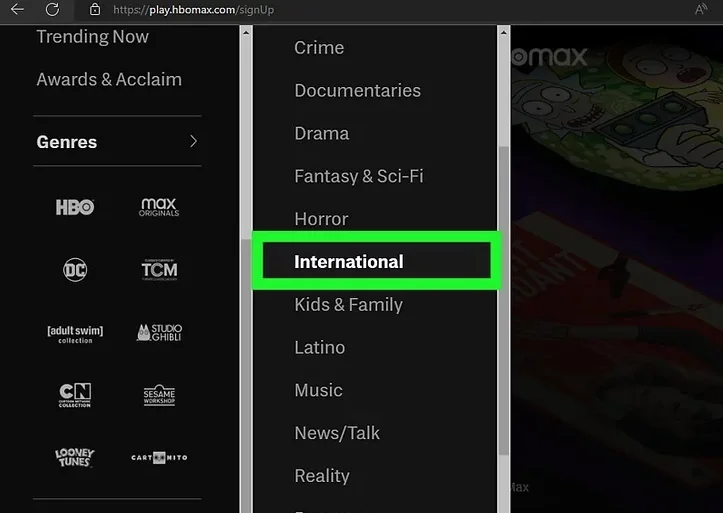
- Click on International section for movies & series.
- Select any specific language as per your choice.
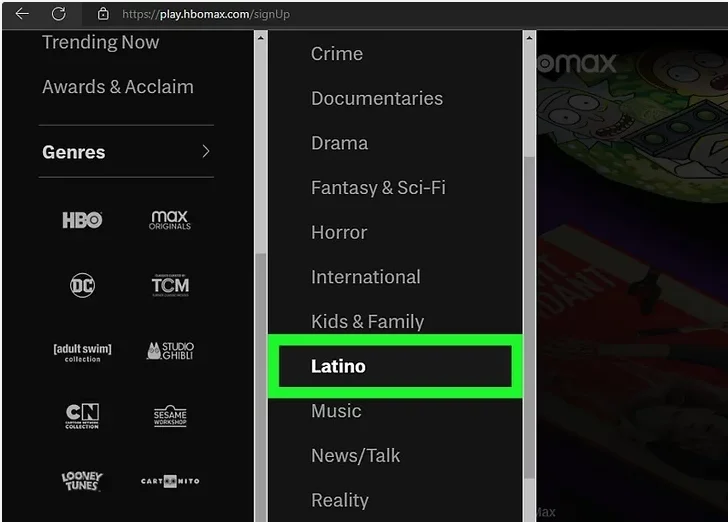
- Let’s Example choose Latino for Spanish and Portuguese programs.
- Check the details page of any specific show to see supported language options.
Language choices can depend on:
This is why two shows on HBO Max may have completely different language options. If you are looking for movies in Spanish, French, German, or another language, it is better to check the individual title rather than assume the whole HBO Max library has the same options.
Why Can’t I Change the Language on HBO Max?
Sometimes the language option you want may not appear. This does not always mean there is a problem with HBO Max.
The title does not offer that language
This is one of the most common reasons. A movie may only have English audio, while another movie may offer English, Spanish, and French. Check another title to see whether the language appears there.
The language is not available in your region
HBO Max content can vary between countries and regions. The same movie may have different audio or subtitle choices depending on where you are watching it. If a language is missing, check the title’s available options rather than assuming the app is broken.
The app needs an update
An older version of the Max app can cause different playback or menu issues. Check your device’s app store and install an available update. After updating, open the app again and test the language settings.
App has a temporary problem
Sometimes a simple restart can fix a menu that is not responding. Close the Max app completely and open it again. If you are using a Smart TV or streaming device, restarting the device can also help.
Language menu is not visible
Make sure the movie or episode is actually playing. The Audio and Subtitles controls are normally accessed from the playback screen. If you are still on the title page, you may not see the language options.
Problem only happens with one title
Try another movie or TV show. If the language options appear on other titles, the issue is probably related to the content you first selected.
How to Fix HBO Max Language Settings Not Working
If the language settings are not working as expected, try these basic steps:
Step 1: Restart the app
Close HBO Max or Max and open it again.
Step 2: Update the app
Check whether a newer version is available for your device.
Step 3: Restart your device
Restart your phone, tablet, Smart TV, Firestick, Roku, or other streaming device.
Step 4: Try another title
This is a useful test. If the language option works on another movie, the first title may not support that language.
Step 5: Check both audio and subtitle settings
Your preferred language may be available for subtitles but not audio, or the other way around.
Step 6: Check your device
If the problem only happens on one device, test the same title on another supported device if possible. These steps can help you find out whether the issue comes from the title, app, or device.
What Languages Are Available on HBO Max?
There is no single language list that applies to every title. Language availability can change from one movie or TV show to another. Some content may include multiple audio tracks. Other titles may only provide the original audio with a few subtitle choices.
You may also see different options depending on your country or region. For this reason, it is better to check the language options for the exact title you want to watch.
If you are searching for a movie in a specific language, check whether that title provides the audio or subtitle option before starting playback.
Does HBO Max Support Subtitles?
Yes, supported HBO Max content can include subtitles or captions. The available subtitle languages depend on the title and region. To check them:
- Start playing the movie or episode.
- Open Audio and Subtitles.
- Select the subtitle language you want.
- If you want to watch without subtitles, use the same menu to turn them off.
Some users also turn on subtitles even when watching content in their first language. This can make dialogue easier to follow, especially when the audio is quiet or there is background noise.
Can You Change Language for Every HBO Max Movie?
Not always. Language settings are connected to the content available for each title. You may select Spanish audio for one movie but not find Spanish audio on another.
This is why it is better to check the language options instead of expecting one language setting to apply to the entire HBO Max library. If you usually watch content in a specific language, you may need to check each title before watching it.
HBO Max Language Settings vs. Audio and Subtitles
These settings are easy to mix up.
Frequently Asked Questions
Final Thoughts
Changing the language on HBO Max is usually simple. Start the movie or show, open the playback controls, and select Audio and Subtitles.
The main thing to remember is that language options are not the same for every title. Your region can also affect which audio and subtitle languages are available.
If you cannot find the language you want, check another movie or episode first. If the option is missing across different titles, then try updating or restarting the Max app and your device.